

Table of Contents
- What You'll Need Before You Secure Your Home Network
- Step 1: Change Default Router Credentials and Your SSID
- Step 2: Update Router Firmware and Enable Automatic Updates
- Step 3: WPA3 vs WPA2 Encryption, Which to Use and How to Enable It
- Step 4: How to Set Up a Guest Network for Visitors and Smart Devices
- Step 5: Securing IoT Devices on Your Home Network
- Step 6: Advanced Measures to Secure Your Home Network
- What to Do If Your Network Has Already Been Compromised
Last Updated: August 22, 2026
Most home networks run on factory settings for months or years before anything goes wrong. The problem is that "nothing going wrong yet" is not the same as "secure." Knowing how to secure your home network is one of the most practical things you can do for your digital safety in 2026. According to CISA's home network security guidance, unsecured home networks are a primary entry point for malware, phishing campaigns, and unauthorized access to personal data. Weak default credentials and outdated router firmware are the two most exploited vulnerabilities, and both are completely preventable.
What You'll Need Before You Secure Your Home Network
Before touching any settings, gather the following:
-
Your router's IP address, typically
192.168.1.1or192.168.0.1, printed on the router's label - Current admin username and password, also on the label (these are the defaults you will replace)
- Your router's model number, needed to find firmware updates on the manufacturer's site
- A device connected to the network, laptop or desktop preferred over mobile for admin panel access
Write your new credentials down and store them somewhere physically secure, not in a notes app on the same network you are securing.
Step 1: Change Default Router Credentials and Your SSID
The single most common mistake on home networks is leaving default credentials in place. Router manufacturers ship every unit with the same admin username and password, often something like admin / admin. Any attacker who identifies your router model can look up those defaults in seconds.
Log into your router's admin panel by typing the IP address into a browser. Navigate to the administration or account settings section and change both the username and password. A strong password uses at least 16 characters, mixing uppercase, lowercase, numbers, and symbols. Do not reuse a password from any other account.
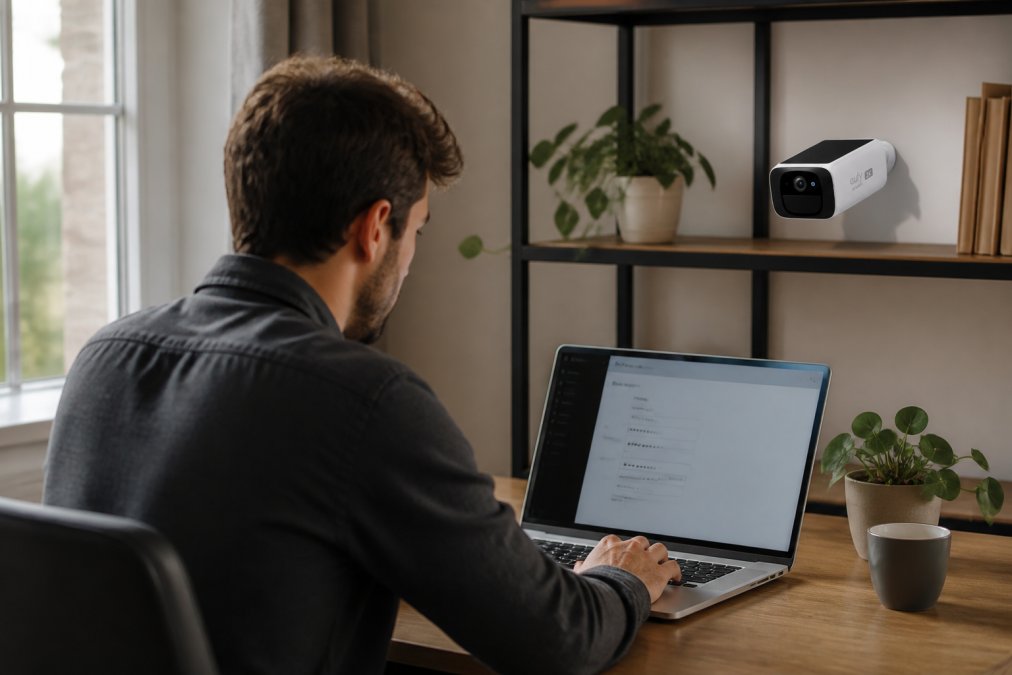
Your SSID (Service Set Identifier) is the name your Wi-Fi network broadcasts. Change it from the default, which often includes your router model or ISP name. Pick something that does not identify your address or household.
Step 2: Update Router Firmware and Enable Automatic Updates
Router firmware is the software that runs your router's operating system. Manufacturers release security patches to fix known vulnerabilities, and an unpatched router is an open door for anyone who knows about those flaws.
Most routers have a firmware update section under the Administration or Advanced tab in the admin panel. Check for updates manually first, then enable automatic updates if your router supports them. Some older models require you to download the firmware file from the manufacturer's website and upload it manually.
Many ISPs do not keep your router updated, especially if you own your own hardware. Check the update history and compare the current firmware version against the latest release on the manufacturer's support page. According to FTC guidance on router security for consumers, keeping router firmware current is one of the most effective steps consumers can take to reduce exposure to known cyber threats.
Step 3: WPA3 vs WPA2 Encryption, Which to Use and How to Enable It
WPA3 encryption is the current Wi-Fi security standard and is meaningfully stronger than its predecessor. WPA3 uses Simultaneous Authentication of Equals (SAE) instead of the Pre-Shared Key handshake used by WPA2, making it resistant to offline dictionary attacks. If your router and devices support WPA3, enable it.
WPA2 encryption remains secure when paired with a strong password, but it has known weaknesses, including the KRACK vulnerability class.
To enable WPA3: go to your router's Wireless Settings, find the Security Mode dropdown, and select WPA3 or WPA3/WPA2 mixed mode. Mixed mode maintains compatibility with older devices that do not support WPA3.

Avoid WEP entirely. WEP (Wired Equivalent Privacy) is a legacy protocol that can be cracked in minutes with freely available tools.
Step 4: How to Set Up a Guest Network for Visitors and Smart Devices
A guest network is a separate Wi-Fi network that runs on the same router but is isolated from your primary network. Visitors connect to it without ever touching the devices on your main network.
Most modern routers support guest networks under the Wireless or Guest Access section of the admin panel. Enable it, give it a distinct SSID, and set a strong password. Ensure the "Allow guests to access local network resources" option is disabled to enforce isolation.
Guest networks solve a critical problem: you cannot control what software or malware a visitor's device is running. Keeping their traffic on a separate network segment means a compromised guest device cannot reach your computers, NAS drives, or smart home hubs. The same logic applies to smart home devices, which often have poor security track records and infrequent firmware updates.
Step 5: Securing IoT Devices on Your Home Network
Smart cameras, thermostats, door locks, and speakers often run stripped-down operating systems with minimal security controls. They are always on, always connected, and frequently forgotten.
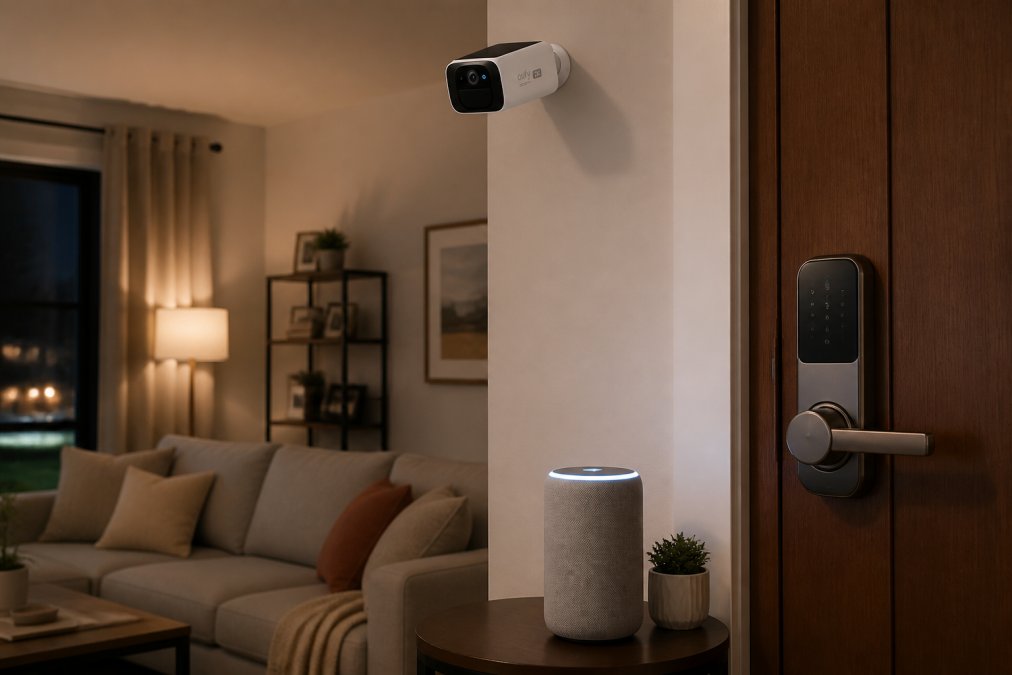
Every IoT device belongs on a dedicated network segment, not your primary network. This is network segmentation in practice. A compromised smart camera should not have a path to your laptop's file shares or home office documents.
Practical steps for securing IoT devices:
- Change default credentials immediately before connecting the device to your network.
- Enable auto-updates in each device's app or settings.
- Disable features you do not use, such as remote access or voice control.
- Audit connected devices regularly by logging into your router's admin panel and reviewing the device list.
If you are adding a security camera to your setup, the Wireless 2K Solar Security Camera from MyStuff connects over 2.4 GHz Wi-Fi and is designed to work without a monthly fee or cloud dependency, which reduces the number of external servers your camera data touches.
Step 6: Advanced Measures to Secure Your Home Network
The steps above cover the baseline. This section covers measures that meaningfully raise the cost of a successful attack.
Disable Remote Management and WPS
Remote management allows you to access your router's admin panel from outside your home network. Unless you have a specific reason to need this, disable it. When remote management is on, your router's admin interface is exposed to the entire internet.
WPS (Wi-Fi Protected Setup) is designed to simplify device pairing using a PIN or button press. The PIN-based WPS method has a well-documented vulnerability that allows an attacker to brute-force the PIN in hours. Disable WPS entirely in your router's wireless settings.
Use DNS Filtering and a Firewall
DNS filtering is an underused tool for home network security. By switching to a security-focused DNS provider, you can block known malicious domains before a connection is established, stopping malware and phishing attempts at the network level.
To switch your DNS: go to your router's WAN or Internet settings and replace the default DNS addresses with those of a security-focused provider. This applies the filter to every device on your network without individual configuration.
Your router also has a built-in firewall. Confirm it is enabled in the Security or Firewall section of the admin panel. The firewall inspects incoming and outgoing network traffic and blocks packets that do not meet defined security rules.
Enable MAC Address Filtering and Limit Physical Access
MAC address filtering allows you to create a whitelist of devices permitted to connect to your network. Every network interface has a unique MAC address. When filtering is enabled, devices not on the list are refused, even if they know the Wi-Fi password. MAC addresses can be spoofed by a determined attacker, so this is not a substitute for strong encryption, but it adds friction that deters opportunistic attacks.
Physical access is the security control most home users never think about. A router that can be physically touched can be factory reset, bypassing every software control you have configured. Keep your router in a location not accessible to casual visitors.
The MOMAX PinGuard Hidden Camera Detector is worth mentioning for a related concern: if you are worried about surveillance hardware in shared spaces or rental properties, the PinGuard detects hidden cameras and integrates with Apple Find My for broader tracking awareness.

What to Do If Your Network Has Already Been Compromised
A compromised home network is recoverable. The key is acting quickly and systematically.
Signs your network may be compromised:
- Devices you do not recognize appear in the router's connected device list
- Your internet connection is unusually slow without explanation
- You receive notifications about account logins from unfamiliar locations
- DNS settings in your router have changed without your input
Recovery steps:
- Disconnect all devices from the network to stop any ongoing data exfiltration.
- Factory reset your router, wiping all configuration, including any malicious changes an attacker may have made.
- Reconfigure from scratch, do not restore from a saved configuration file.
- Change passwords on all accounts accessed from the network, including email, banking, and connected services.
- Run malware scans on every device using reputable security software.
- Check for unauthorized account activity in financial accounts, email sent folders, and connected services.
A VPN adds a privacy layer by encrypting your network traffic between your devices and the VPN server, masking your activity from your ISP. It does not replace the security steps above, but it complements them for users with higher privacy requirements.
For households with smart locks, the Waterproof Smart Lock with Fingerprint and Password Access from MyStuff integrates with the TTLock app and supports multiple authentication methods, reducing reliance on network-connected key sharing. For post-incident recovery, CISA's incident response resources for individuals and households provides step-by-step guidance aligned with current cybersecurity best practices.

Securing a home network is not a one-time task, it is a configuration you set up correctly once and then maintain. MyStuff's smart home security products are designed to make the physical layer of that protection straightforward: reliable hardware, no unnecessary cloud dependencies, and clear setup processes. Start with your router settings today, add the right hardware where it counts, and you will have a meaningfully more secure network by the end of the week. Shop Smart Essentials at MyStuff and build a connected home you can actually trust.
Frequently Asked Questions
How do I know if my home network is secure?
Log into your router's admin panel and check: are default credentials changed, is WPA3 or WPA2 encryption enabled, is firmware up to date, and is remote management turned off? You can also use your router's connected-devices list to spot any unfamiliar devices. If you see unknown IP addresses or devices you don't recognize, run a factory reset and reconfigure your network from scratch with strong, unique credentials.
Should I use a guest network for my smart home devices?
Yes. Placing IoT devices, smart cameras, thermostats, locks, on a separate guest network isolates them from your main computers and phones. If a smart device gets infected with malware, network segmentation stops it from reaching your sensitive data. Most modern routers support guest networks at no extra cost. Enable it in your router's admin panel, assign a strong password, and connect all smart home gadgets to that network instead of your primary one.
How often should I update my router firmware?
Check for router firmware updates every one to three months, or enable automatic updates if your router supports them. Manufacturers release security patches to fix vulnerabilities that cybercriminals actively exploit. Outdated firmware is one of the most common entry points for attackers on home networks. Log into your admin panel, navigate to the firmware or software update section, and apply any available updates immediately.
What is the most secure home Wi-Fi network configuration?
The strongest configuration combines WPA3 encryption, a unique SSID that doesn't reveal your name or address, a password of at least 16 characters, a separate guest network for IoT devices, disabled WPS and remote management, and up-to-date router firmware. Adding DNS filtering through a service like your router's built-in options adds another layer. For households with many connected devices, a VPN on the router level further encrypts all outgoing network traffic.
This article was written using GrandRanker